Running models locally can improve privacy, experimentation speed, and cost control. It does not make an AI workload private by default. Prompts can still reach external integrations, models and containers still form a software supply chain, and GPU access changes the isolation boundary of the host.
For teams with scarce accelerator capacity, sharing one GPU can make local AI services available without dedicating the device to one virtual machine. That is an isolation decision, not merely a utilization decision.
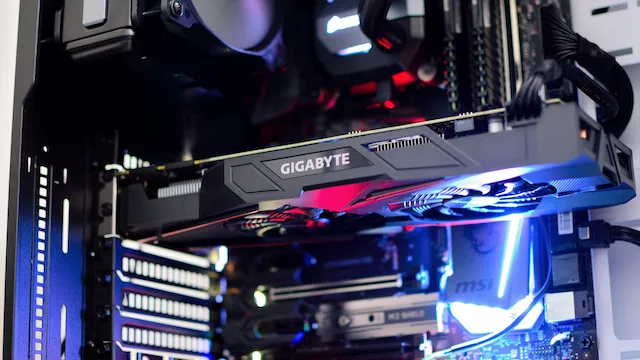
I built a Proxmox LXC environment around a 24 GB RTX 3090. It made local inference capacity available without dedicating the GPU to one full virtual machine. The design works because LXC shares the host kernel and can expose the NVIDIA device nodes to more than one container.
That efficiency is also the central tradeoff: LXC provides less isolation than a VM with PCI passthrough. For untrusted code, hostile multi-tenancy, or strong workload separation, I would choose the VM boundary and accept the additional overhead.
The architecture
Proxmox host ├── NVIDIA kernel driver and physical GPU └── unprivileged LXC ├── matching NVIDIA user-space libraries ├── NVIDIA Container Toolkit └── Docker AI workloadsThe host owns the kernel module. The LXC receives selected /dev/nvidia* devices and matching user-space libraries. Docker then uses the NVIDIA runtime inside the LXC.
The exact driver, Proxmox kernel, device nodes, and CUDA image tags change over time. Treat the commands below as a design pattern and pin versions that are mutually compatible.
1. Establish the host driver first
Install the Proxmox kernel headers and the dependencies required by the driver method you select:
apt updateapt install --yes pve-headers dkms pkg-config libglvnd-dev nvtopI used the keylase/nvidia-patch Linux driver table
as an index of direct NVIDIA installer links. In practice, NVIDIA’s official
driver search sometimes surfaced an older U.S. release when a newer
international release was already available. The table made the newer
NVIDIA-hosted .run file easier to find; this setup does not clone or execute
the patch repository.
The commands below preserve the tested 610.57.04 path as historical evidence, not a current driver recommendation. Before reuse, select a currently supported release that is compatible with the Proxmox kernel and target CUDA workloads, verify NVIDIA’s published checksum, and use matching user-space libraries in the LXC.
cd /tmpwget http://international.download.nvidia.com/XFree86/Linux-x86_64/610.57.04/NVIDIA-Linux-x86_64-610.57.04.runchmod +x NVIDIA-Linux-x86_64-610.57.04.run./NVIDIA-Linux-x86_64-610.57.04.run --no-questions --ui=none --disable-nouveauIf nouveau, nova_core, or another module binds the card first, resolve that conflict deliberately and rebuild the initramfs before continuing. Reboot the host after installing the driver.
Plan rollback before changing the host. When a runfile-installed driver must be removed, NVIDIA’s installer provides /usr/bin/nvidia-uninstall; restore the prior validated driver path and reboot before treating the host as recovered.
Validate the host before touching the container:
nvidia-smilspci -nnk -d 10de:ls -al /dev/nvidia*Record the driver version and the device major numbers. A working host is the prerequisite; container changes cannot repair a broken host driver.
2. Set host-wide power policy
Power limits apply to the physical card, so set them on the Proxmox host. On my RTX 3090, 280 W was a useful starting point for reducing heat and power draw while retaining most inference performance. That value is an observation from this hardware, not a universal optimum.
Check the supported range before setting it:
nvidia-smi \ --query-gpu=power.min_limit,power.default_limit,power.max_limit \ --format=csvnvidia-smi --persistence-mode=1nvidia-smi --power-limit=280If the setting should survive reboot, manage it as host configuration—for example, with a small systemd unit—and monitor whether driver upgrades change the supported range.
3. Create a constrained LXC
Use an unprivileged container unless a tested requirement proves otherwise. Avoid piping an internet-hosted helper script directly into a root shell; review and pin any provisioning code before execution.
Install Docker through a maintained repository, patch the base OS, and keep the container off untrusted networks while the GPU configuration is incomplete.
4. Map only the required NVIDIA devices
Inspect the host’s current devices:
ls -al /dev/nvidia*Then add the corresponding device permissions and bind mounts to /etc/pve/lxc/<id>.conf. A single-GPU example may look like this:
lxc.cgroup2.devices.allow: c 195:* rwmlxc.cgroup2.devices.allow: c 235:* rwmlxc.cgroup2.devices.allow: c 238:* rwmlxc.mount.entry: /dev/nvidia0 dev/nvidia0 none bind,optional,create=filelxc.mount.entry: /dev/nvidiactl dev/nvidiactl none bind,optional,create=filelxc.mount.entry: /dev/nvidia-modeset dev/nvidia-modeset none bind,optional,create=filelxc.mount.entry: /dev/nvidia-uvm dev/nvidia-uvm none bind,optional,create=filelxc.mount.entry: /dev/nvidia-uvm-tools dev/nvidia-uvm-tools none bind,optional,create=filelxc.mount.entry: /dev/nvidia-caps/nvidia-cap1 dev/nvidia-caps/nvidia-cap1 none bind,optional,create=filelxc.mount.entry: /dev/nvidia-caps/nvidia-cap2 dev/nvidia-caps/nvidia-cap2 none bind,optional,create=fileThe major numbers and available device nodes are host-specific. Do not copy them blindly. Restart the LXC and confirm that only the intended devices appear inside it.
5. Match user-space libraries inside the LXC
Install matching user-space libraries inside the LXC so they remain compatible with the host driver:
cd /tmpwget http://international.download.nvidia.com/XFree86/Linux-x86_64/610.57.04/NVIDIA-Linux-x86_64-610.57.04.runchmod +x NVIDIA-Linux-x86_64-610.57.04.run./NVIDIA-Linux-x86_64-610.57.04.run --no-questions --ui=none --no-kernel-modulesrebootThe --no-kernel-modules option is intentional. The Proxmox host owns the NVIDIA kernel modules; the LXC needs only the matching user-space libraries.
After the LXC restarts, validate:
nvidia-smiA driver/library mismatch or No devices were found usually means the host driver changed, the container libraries no longer match, or the LXC has not been restarted since device bindings changed.
6. Configure Docker’s NVIDIA runtime
Install the NVIDIA Container Toolkit from NVIDIA’s repository, then configure Docker:
nvidia-ctk runtime configure --runtime=dockersystemctl restart dockerDepending on the LXC configuration, the NVIDIA runtime may require no-cgroups = true. Treat that as an environment-specific compatibility setting, not a default to apply everywhere.
Validate the entire chain with a pinned CUDA image compatible with the selected driver:
docker run --rm --gpus all <reviewed-cuda-image> nvidia-smiOnly after that test passes should an inference service be introduced.
The security controls around local AI
GPU access is only one layer. I also treat the following as part of the design:
- Do not expose model APIs or management interfaces directly to the internet.
- Authenticate internal clients and separate administrative from inference access.
- Keep secrets out of images, compose files, prompts, and model logs.
- Restrict outbound access when the privacy objective depends on local processing.
- Review model, container, and extension sources before execution.
- Monitor resource use; a runaway context or model can exhaust shared memory and GPU capacity.
- Back up configuration and data required to rebuild the service, then test restoration.
Local AI is attractive because it gives the operator more control. It also gives the operator more responsibility. The design is successful when privacy, isolation, recoverability, and cost are explicit decisions—not assumptions inherited from the word “local.”
Lessons learned
On this build, sharing the host driver gave me useful inference capacity without reserving the GPU for one VM. It also removed any ambiguity about who owned the risk. I still had to manage device exposure, the shared kernel, container privileges, model provenance, outbound traffic, and recovery.
“Local or cloud” is too coarse a design question. I need to know which workloads can safely share a kernel and accelerator, what data they may process, which dependencies I trust, and which failures the environment must survive. When stronger isolation matters more than GPU utilization, I use a VM or a separate system. LXC belongs where its narrower boundary is understood and tested.
I validate that choice at every layer: compatible host and container drivers, only the intended device nodes, enforced network policy, authenticated access, observed egress, bounded resource exhaustion, pinned dependencies, and a clean rebuild or restore. Recovery should sit outside the workload’s failure domain; the n8n backup failure shows what happens when a service is also responsible for protecting itself.
Where has your organization drawn the isolation boundary for local AI workloads, and what evidence would justify moving that boundary closer to—or farther from—the host?